Showing posts with label accessiblity. Show all posts

Google's New Contextual Spell Check


Google recently announce a new contextual spell check that will be built into Chrome shortly. Chrome is Google's free web browser. The spell checker will analyize the context so if you type "the meet is rotten" it will know that you were trying to say "the meat is rotten." This is a very nice addition to Google's products. Click read more  or to see more pictures of the new spell check in action.


The New iPad: Thoughts From an Assistive Technology Prospective


The New iPad is out with a new high-resolution display, improved rear facing camera, dictation and more, but what does it mean for people with disabilities?

Camera - The New iPad has a much improved 5 megapixel rear facing camera. The new camera will enable assistive technology users to capture documents with more clarity. With the new improved camera, apps such as Prizmo, JotNot, ZoomReader, Scanner Pro and TurboScan will work much better.

Dictation - The New iPad also includes voice dictation which allows you to to talk instead of needing to type. The dictation feature works well and is very similar to voice dictation on the iPhone 4S. The new iPad does not have Siri support so it cannot answer your questions.

The New iPad adds some nice new features and remains accessible with VoiceOver. The iPad 2 remains on sale for $399.

PaperPort Notes App for iPad: Notetaking with Dictation


Paperport Notes is a free app for the iPad. The app is made by Nuance the maker of Dragon Dictation. The app allows users to take notes by typing, writing with a stylist or by dictation. Paperport Notes also allows users to import pictures and web pages into notes as visual reminders. Another useful feature allows users to record audio notes of a class or meeting while they are typing or writing notes. The audio notes will allow you to go back and review the class or meeting if you missed an important part. Once you have completed your note you can save in as a PDF or use cloud services such as Dropbox.


Click read more below to view more images of Paperport Notes.


Is the Remarks App Remarkable?


Remarks is a note taking and PDF annotation app for the iPad. It allows users to take notes with a stylist or finger. The app also allows users to edit PDFs by adding handwriting, drawings, text or pictures. The app has very elegant navigation options including viewing all the pages in a document and quick page selection.

There is not a search feature that allows you to find a word within the document. From the main screen users can arrange their documents into folders. There is an option to to search for documents from the main screen.You can also change the paper type to graph, dotted, isometric and more. Once you have completed you can email the note as a PDF or save it to the app.

When creating a new note you can add hand writing, text with the keyboard or add images. A cool feature allows you to rest your wrist on the iPad screen while you use your finger or a stylist to write. Users can also draw shapes such as arrows, lines, circles and squares. You can also add images from your camera. When multitasking gestures are enabled you cannot rest your wrist on the screen without unknowingly changing apps.

To annotate a PDF users can use the "open in" button from Safari, Mail and many other apps. When annotating PDFs you can add all of the available elements while making a note.

Remarks costs $4.99 in the App Store.

Click read more below to see more images and videos about Remarks.


Ask Siri How to Spell Unfamiliar Words


Siri is a new feature available on the iPhone 4S. I find myself asking others how to spell unfamiliar often. When no one is around I have to find a different word to use. If you are like me Siri can be very helpful. Simply ask Siri "how do you spell..." and Siri will give you the correct spelling in seconds. Siri has many other useful functions such as defining words. To learn more about the iPhone 4S and its accessibility features click here.

Elago S4 Glide Review


Many people are using the iPhones and other iOS devices every day for their assistive technology needs. The iPhone is useful device that goes in and out of people pockets all day. Many children use devices to assistive them with everyday tasks. As a result of the daily use of  iPhones it is important to invest in a case that will protect your device from everyday life.

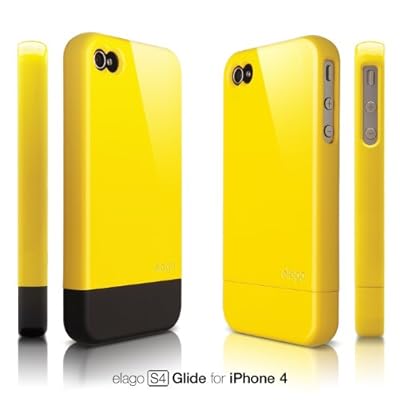
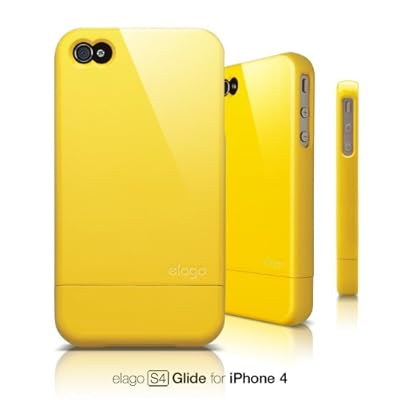
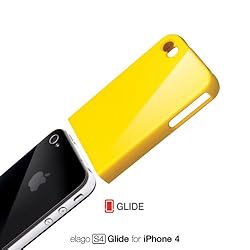
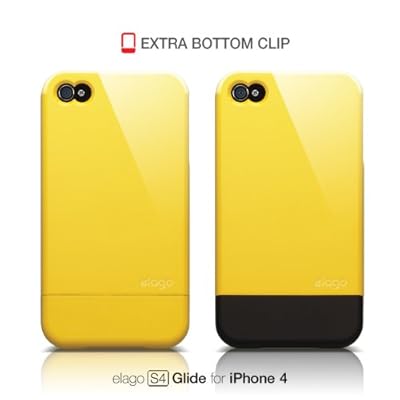
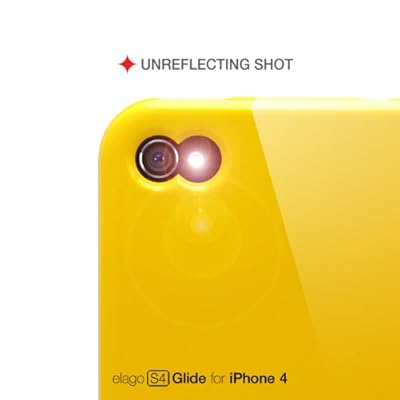
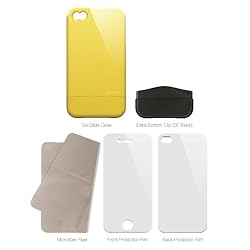
The Elago S4 Glide is a hard plastic slider for the iPhone 4 and iPhone 4S. The case features a two piece design that slides over the iPhone to protect against scratches. The case comes with two bottom pieces to add variety to the case's color. The case comes in many colors and can be arranged into over 100 different color combinations. The cases allows for easy access to all ports and features. To dock the iPhone simply remove the bottom section and insert the iPhone into the dock. The back of the case shows finger prints easily and will need frequent cleaning. The case does not add much bulk to the iPhone but will not withstand drops.The case comes with a front and back screen protector as well as a cleaning cloth. The Elago S4 Glide is good for people who need scratch protection but not ideal for people who are hard on their phone or allow their young children to use their device. The Elago S4 Glide retails for $24.99 from elagostore.com. Click read more below to view pictures and videos of the Elago S4 Glide.


Case was provided complimentary to the reviewer.


Dragon NaturallySpeaking


Dragon NaturallySpeaking is a speak recognition program that allows you to control your computer and dictate with your voice. Dragon NaturallySpeaking includes a headset with a microphone for uses with the program. Dragon NaturallySpeaking has excellent speak recognition accuracy at fast speeds. Dragon allows users to browse the web, write emails and compose and edit Microsoft Office documents with your voice. In addition Dragon can transcribe audio files into text after it was recorded. For example, if you are on the go you can record your voice with an audio recorder and then uses Dragon to make a text document from the audio file. Dragon has numerous commands that you can use to control your computer. You can say, "search the web for..." or "correct that" or "strike that" or 'scroll down" along with many other commands. Because their are so many commands there is a learning curve for new Dragon users. Luckily once you learn the commands that you will use most Dragon can improve the time it take you to perform common tasks. Dragon's speech recognition accuracy is very good out-of-the-box but you can train Dragon by reading text aloud to help improve the accuracy. Creating text documents with Dragon is also quicker and easier with voice. Using Dragon it is easier to get your ideas down on paper and using voice is much quicker than typing. If you have an iOS device you can use it as a remote microphone using the Dragon Remote Microphone available here. To learn more about other Dragon products from Nuance click here, here and here. This product was provided complementary to the reviewer.