Showing posts with label at. Show all posts

Use If This Then That (IFTTT) to Automate Simple Tasks

If This Then That (IFTTT) is a simple app for iPhone and Android that allows you to automate simple tasks. If you want to email every picture you take to your grandparents or tweet about every breaking news story IFTTT can do it for you automatically. The IFTTT app integrates with many other apps and services which allows it to help with a variety of  tasks. IFTTT can integrate with reminders, contacts, photos, messages, Twitter, Google Drive, Facebook, Blogger, Evernote, and many more services.

To start using the app you can choose from hundreds of pre-made recipes or make your own. A recipe could say " If I post a new post on Blogger, tweet its title and a link, "or  "when I arrive at school,text my mom" The app constantly checks your recipes and completes the action at the correct time. It reduces the need to do many monotonous tasks. It also bridges the gap between different web based services allowing you to spend more time using the services and less time managing your digital life.

IFTTT also integrates with certain connected home systems. Using IFTTT in concert with the WeMo connected home platform you can have your lights turn on automatically when you get close to home or turn off the TV when you are far from home.

Some of these recipes can be helpful for people with executive functioning difficulties. For example, the app can automatically check the weather, and if it is going to rain remind you to wear a jacket. The possibilities are almost endless because of the customization the app offers. The app can also complete actions based on your location. You can set up the app to call, email, or text message someone when you arrive or leave a certain location. This could be helpful for parents who need to makes sure their kid has arrived to school safely in the morning. For example, you could set your childs iPhone to email you everytime they arrive or leave school.

IFTTT has an iOS app and website both are free of charge. Click read more below to view screen shots of the IFTTT app in action.


Apple's Announcements Impact on Accessibility


This week Apple announced a variety of new hardware and software products at media event. While Apple executives didn't devote stage time to accessibility announcements as they have in years past, the announcements still impact accessibility and assistive technology.

Mac

Apple previewed OS X Mavericks at their World Wide Developers Conference (WWDC) in June. This week Apple released the Mac operating system to the public and announced that it would be a free update. Like iOS 7, Mavericks includes some exciting accessibility improvements including enhanced dictation and Switch Control. Click to read more about each new feature.

iPad
The main focus of the event was updated iPads. Apple released a new full size iPad named iPad Air. The iPad Air is considerably thinner and lighter than the previous full size iPad. In addition to the slimmer design Apple included the new A7 processor which increases performance. The iPad mini was also updated to include a higher quality retina display and is now called the iPad mini with Retina display. Notably, the new iPads don't include Apple's new Touch ID finger print sensor that debut on the iPhone 5s.

Updated Apps

Apple updated their iLife and iWork software for both the Mac and iOS devices. The updates have some useful new features, but I have not found any new accessibility features in these updates. Notably, Apple's education focused iOS apps iBooks and iTunes U were not updated. I'm hopeful that these apps will be updated soon and include new features. In particular, I hope Apple adds improved text-to-speech integration for iBooks. In particular I hope a "read" or "speak" button will be added to allow continuous text-to-speech with highlighting for all books. Currently continuous text-to-speech with highlighting is not possible in iBooks. 

iOS 7.0.3

iOS 7.0.3 is a minor update to iOS 7 but the new release includes a few accessibility improvements. In iOS 7.0.3 the reduce motion accessibility setting decreases navigation animations. This is designed to limit motion sickness that some users reported after updating to iOS 7. iOS 7.0.3 also includes VoiceOver fixes for a sensitivity issue that was present in previous versions of iOS 7.

Amara Free Crowd Sourced Captioning For YouTubers


A service called Amara allows YouTubers to get crowd sourced help captioning their videos. Millions of people, particularly those with hearing impairments, rely on captions in order to watch movies and videos. Amara's goal is to have more captioned videos on the web. Anyone with a YouTube account can register with Amara.org for free. Then volunteers caption the videos for free. After the volunteers caption the videos the captions are then added to your YouTube video. Captioning videos can be difficult for individual video creators. Now with Amara there is no reason for YouTubers not to have their videos captioned. People can also volunteer to help caption more web videos.

Google+ Hangouts Allow Homebound a New Window to the World


Google's social networking site Google+ has made news again for its Hangout video chat feature. This time for providing a new window to the world for people with disabilities that make traveling difficult or impossible. A growing number of photographers are providing videos of different landmarks and attractions. These are not just stagnate videos, users can communicate with the photographer and ask them questions in real time. Also, multiple users can participate in a single session. This feature could also be used to allow people with disabilities to virtually attend a sports game, class, concert, or play. Watch the above video to learn more.

Learning Ally Adds Text To Select Audiobooks


Learning Ally has started to add text  to a handfull of audiobooks in its collection. Learning Ally is an audio book library for people with print disabilities. The audio books with intergrated text download and opparate just like any other Learning Ally audiobook. If you prefer to just listen to the book and not read along you can do so. The book is read aloud with human narration and each paragraph is highlighted as it is being read. The text and highlighting help users follow the words as the text is being read which can help with comprehension. Some people might find it easier to follow the text if it highlighted word by-word or line- by-line instead of  paragraph-by-paragraph, but including text is a great new feature.

The app on the iPhone, iPad, and iPod Touch still does not allow for background download or reading which means that when you close the app the audiobook will stop. Even with these shortcomings it is exciting to see  human audio and text in one easy to use app.

One title I found with the new feature is "I Know Why the Caged Bird Sings." Learning Ally will begin offering more titles with text and audio in the future. To download the free Learing Ally app click here.

Click read more below to view screenshots of the app in action.


HoverCam: Portable Scanner and Document Viewer In One


The HoverCam is a collapsible document camera and scanner all in one portable package. The HoverCam first slides out of the base and then swings out from the arm. The HoverCam T5 has a five megapixel camera which allows the HoverCam to capture crisp scans of documents up to 11" X 14". The HoverCam plugs into a Mac or PC using USB and does not require any external power. To begin using the HoverCam, launch the HoverCam Flex software which is included with the HoverCam T5. The HoverCam Flex software gives you the option to start scanning, capture a video, or show and annotate a document on a projector. Click read more below to learn more.


Scanning:

In order to scan to a PDF, JPEG, or other file type, place the document under the camera and position it properly then snap the picture. If you have more than one page you can use an included alignment bumper to line up each page more quickly. The HoverCam takes pictures very quickly with almost no time lag. Scanning documents with the HoverCam seems to be more difficult than scanning documents with a flatbed scanner. A scanner requires less aliment and adjustments but at the HoverCam is much more portable than a flatbed scanner. A scanner with a multi-page feeder would also be much faster than the HoverCam at scanning multi-page documents. The document quality is similar to the quality of a scanner which is impressive for a device of this size. From my experience the HoverCam has similar quality and speed compared to a portable scanner. I would not recommend students rely on the HoverCam to scan documents during class unless it is at a work-station during study hall . Using any scanner during class while the teacher is lecturing or other students are working with the print material can be distracting and time consuming. Scanning of books is one of the strong suits of the HoverCam. You can just put the book under the HoverCam, align in correctly, and then scan the first two pages then just flip the page to scan the next two pages. With a flatbed scanner it is much more difficult because you must lift the book after each page. The HoverCam includes built in LED lights for use in dimly lit rooms. The HoverCam also includes a mat with tactile alignment ridges for the blind and visually impaired.

Video:

Video recording is not the HoverCam's strong suit. The video seemed very choppy and the audio from the built in microphone was muffled. When moving a hand across the screen the hand would have a ghost effect.  

Document Camera:

The HoverCam also has document camera functionality. It allows teachers or presenters to display documents to a group. The built in LED lights provide good image quality even in dimly light rooms. When showing a document you can add annotations including text and underlines. The HoverCam also includes a Kensington-compatible security slot so you can lock it up when you're not using it.

Kurzweil Compatibility:

Kurzweil 3000 users can use the HoverCam as a scanner to directly scan documents into Kurzweil. Watch the above video to learn more about HoverCam compatibility with Kurzweil. 

Pricing/Availability:

The HoverCam T3 costs $219 and the HoverCam T5 costs $279 from thehovercam.com. The HoverCam T3 includes a 3 megapixel camera while the T5 includes a 5 megapixel camera. The T5 includes some other features that are not available on the less expensive T3. Visit thehovercam.com to learn more. 

Who Can Benefit?

The HoverCam could be a good tool for students who use Kurzweil and does not already have a scanner. With the HoverCam you can portably scan documents which is impossible with a flatbed scanner. The HoverCam is similar to a portable scanner in terms of speed and quality. For teachers, the HoverCam is a good document camera with annotation options.

Sample Document Scans:

Using HoverCam:


Using Scanner Pro for iPhone:


This product was provide to reviewer for purpose of review and was returned

iTunes 11 Feature Helps Visually Impaired Redeem Gift Cards


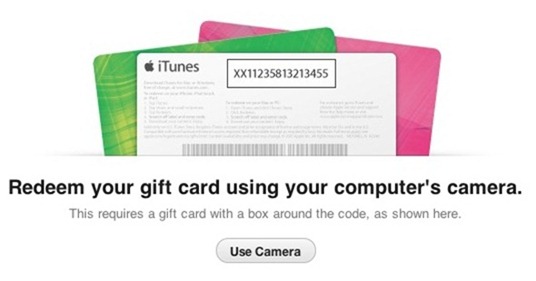
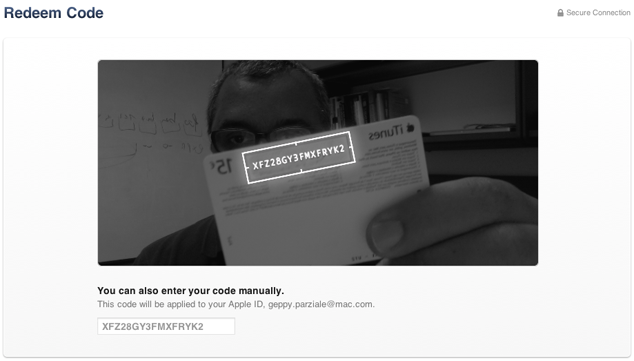
A feature in Apple's iTunes 11 allows you to scan a gift card code using your computer's camera. The feature is particularly intriguing for the blind, visually impaired and for dyslexics. While it may be inconvenient for most people to type the 16 digit code, it is impossible for users who are blind or visually impaired, and can be a struggle for some dyslexics. To use the feature position the gift card in front of the computer's camera. For people with visual impairments VoiceOver, Apple's built in screen reader on your Mac will help you frame the card in the picture. Then iTunes recognizes the code and credits the money to your iTunes account. This feature makes it possible for the blind and visually impaired to easily and independently redeem iTunes gift cards. Maybe this cool scanning feature will make its way to iOS in the near future.

Click read more below to view pictures of the scanning feature in action.


Livescribe Sky Wifi Smartpen: Handwriten Notes With Audio in the Cloud


Overview:

The Sky Wifi Smartpen from Livescribe is a WiFi enabled pen that has a built in audio recorder. This allows you to digitize handwritten notes which you can sync to Evernote wirelessly when in a compatible WiFi hotspot. (See below for Evernote description) The smartpen allows you to take handwritten notes which are linked to an audio recording of what was being said at the time you wrote your notes. The pen can record audio using a built in or external microphone. Using specially designed note paper, you simply touch "record" at the bottom of the dot paper page and begin writing notes. The camera at the bottom of the pen tracks where you write and the built in microphone records what is being said. The result is that your writing is linked with whatever was spoken at the time. In other words each pen-stroke is linked with the sound that you heard at that time. So if you are in class and your teacher is discussing President Washington and you write "President Washington" later you can playback everything the teacher said about Washington at that time by touching the pen to the words "President Washington."

Many of the pen's functions are accessed by touching buttons printed on the specially designed dot paper with the tip of the pen. When you are done taking notes you simply press the stop button at the bottom of the dot paper notebook and your handwriting and audio recording is automatically synced to Evernote. Click here to view a sample note. From Evernote you can view the note and listen to the audio or share the note.

Click read more below to read the full review.

Benefits:


The Sky Wifi Smartpen has numerous benefits for students, business people, and teachers. The pen allows you to hand write your notes but still have them available electronically. The linked audio is great for reviewing and remembering class notes or business meetings. Also you do not need to worry about using a stylus and tablet.

Set up:


Setting up the Sky WiFi Samrtpen was a bit complicated. Luckily it is a one time set up. In order to connect to Wifi you must use the printed keyboard on the inside cover of your specially designed dot paper notebook. However, you currently cannot connect to wifi networks with hidden SSIDs or networks that require a sign-in or agreement page to connect. Connecting the pen to your Evernote account is very easy.

Hardware:

The smartpen looks like a normal pen but is a bit thicker in order to accommodate all of the electronics. It is comfortable to hold and easy to write with. The pen only includes one physical button which turns the pen on and off. On the front is a small screen, microphone, and speaker. The microphone works well even from long distances, but sometimes picks up the sound of the pen writing. The speaker is adequate for personal use in a quiet room but you can also plug in headphones to the headphone jack on top. The top also has a micro-USB for charging. On the bottom is the ball point tip which is replaceable and a camera which tracks where you are writing on the dot paper. The bottom half of the pen has a slightly rubberized feel that prevents the pen from slipping from your grip. Having wifi turned on degrades battery life but you can turn wifi off by taping the wifi off button on the front cover of your notebook.

Evernote:


Evernote integration is a huge plus for the Sky Wifi Smartpen. It makes it seamless to view and listen to your notes on virtually any devices. Evernote is a free internet storage service designed especially for note taking. Evernote is an online services designed to help you organize notes and information. Evernotes has apps for iOS, Android, Windows Phone, Blackberry, Windows, and Mac. Evernote also allows you to search for text within your notes and organize notes using tags. Evernote also makes sharing a breeze. Your shared pen casts can be view and played on almost any device with the Livescribe player. From within the Livescribe player you can click on any part of your notes to hear what was being said at that time.

Accessories:


The smartpen needs dot paper to work. You can print the dot paper from certain printers or buy it from Livescribe's website. The dot paper comes in notebooks, sticky notes, or index cards and cost somewhat more than normal paper. One small notebook is included with the smartpen. You can add  a recording headset that adds external microphones for increased audio quality. Standard headset such as the Apple headphones with microphone will also work.

Uses:


The smartpen has exciting educational applications. It can be used to help students who have trouble with note taking or who need a little extra help reviewing for tests and quizzes. Students can outline notes and rely on the audio to supplement anything that wasn't written. It could also be used for people with attention issues because if they forget to write down something they can still go back and listen to what they missed. One very exciting application of the pen is for students who are exempt from taking notes. The student who takes notes for the students with disabilities could use the pen to take notes and then immediately email the notes to any student who needs them. This would eliminate any delays in receiving notes and would also not require a teacher to make copies. It also eliminates concerns about the readability of carbon copy notes.

Still To Come:

Sometime in early 2013 a wireless software update will allow you to share your notes to Dropbox, Email, Facebook, and Google Drive. Stay tuned to the Assistive Technology Blog for news about the Sky Wifi Smartpen.

Pricing and Availability:

The Sky Wifi Smartpen costs $150 for 2gb of storage, $200 for 4gb, and $250 for 8gb. Storage is internal and non-upgradable. The smartpen is available online at Livescribe.com and select Best Buy stores.

Videos:


The device was provided complimentary to reviewer .

Apple Releases OS X Mountain Lion With New Accessibility Features


Apple's Mac operating system has been updated. The new update is called OS X Mountain Lion. The new operating system includes over 200 new features including a number of accessibility enhancements. One feature called Dictation allow users to speak their text input instead of typing. Mountain Lion also includes better syncing with iOS devices. OS X Mountain Lion also includes enhancements to VoiceOver. To view a detailed list of all new accessibility in Mountain Lion click here. Apple's website says the following about about OS X accessibility,

"Every Mac comes standard with a wide range of assistive technologies that help people with disabilities enjoy the power and simplicity of the Mac. We call this Universal Access, and it includes many features you won’t find in other operating systems at any price. In OS X, they’re built right in."
To view a detailed list of OS X accessibility features click here. OS X Mountain Lion is available for download from the Mac App Store for $19.99. Click here to download Mountain Lion. Click read more below to view images of Mountain Lion.


Reminder: WWDC Kicks Off Monday, June 11

On Monday, June 11 Apple will kick off its WWDC conference with a Keynote at 10 A.M. Pacific. Apple is rumored to cover OS X Mountain Lion, iOS 6 and possibly Siri for iPad and new Mac computers. Nothing is official until word comes directly from Apple. Last year at WWDC Apple unveiled iOS 5 with many new accessibility features including Speak Selection and Assistive Touch. Stay tuned to the Assistive Technology Blog to hear all about the announcement and how it affects people with disabilities. Let us know in the comments what features or products you would like to see announced.

Click read more below to view more images.


HD iOS 6 icon


Computerized Glasses Help Visually Impaired Navigate Obstacles


Spanish researchers had created a prototype pair of computerized glasses. The glasses look like a large pair of sunglasses with cameras on each lens. The glasses work by analyzing the environment around the user and then highlighting objects that may be obstacles. The highlighting helps the user easily identify obstacles. The users need some vision in order to see the highlights so this is not intended for the blind. The glasses are currently in the prototype stage of development and is not available to consumers. Stay tuned for more information about pricing and availability.      

How To Turn on Parental Controls on an iOS Device


The iPhone, iPad and iPod Touch are great resources for many children and adults alike. If you want more control over what your child is doing while using their iOS device restrictions is the place to go. To enable restrictions go to settings then general and then restrictions. From there you will have to set a password so no one else can change the settings. You will want to make sure that you remember the password. Once you have typed in your password you can block access to different features such as the internet, downloading apps, deleting app, FaceTime, camera and more. These built in options are great for parents and educators who want more control over what children are doing on their iOS device.

To learn more and see step by step instructions watch the video above.  

What Accessibility Features will iOS 6 Include?


Apple's WWDC developer conference is a month away. Last year at WWDC Apple announced iOS 5 and  if rumors are correct Apple is planing to announced iOS 6 in about a month. iOS is the software that runs the iPod Touch, iPhone and iPad. iOS 5 brought many accessibility improvements including, Speak Selection, AssistiveTouch, custom vibration and VoiceOver improvements. In the above I discuss accessibility features that I would like to see included in iOS 6. Hopefully iOS 6 continues the trend of accessibility improvements that benefit people with disabilities.
What accessibility features are you hoping to see in iOS 6? Let us know in the comments.

Text to 911 Will Benefit the Deaf


This weekend Verizon announced its plans to make a nationwide system allowing cell phone users to text message 911. The system will be in place as early as 2013. This service will be helpful for the deaf or hard of hearing who find voice calls difficult if not impossible. Verizon says the following about text to 911's benefit for the deaf or hard of hearing,
"While consumers should always first try to contact a 911 center by making a voice call, this enhanced SMS service, when deployed, will offer an alternative for customers on the Verizon Wireless network who are deaf or hard of hearing and cannot make voice calls or who could be placed in additional danger by speaking."
To be clear if you are able to make voice calls to 911 it remains the preferred method. Text to 911 service has not been deployed so texts to 911 will not be answered. Click read more below to read the Verizon's press release.

The following is copied from Verizon's press release.
Verizon Selects TeleCommunication Systems to Provide Text to 911 National Gateway Solution
New Service Will Enable Customers to Send 911 Short-Code Messages to Emergency Response Centers
BASKING RIDGE, N.J., May 3, 2012 /PRNewswire/ -- Demonstrating its continued commitment to advancing public safety, Verizon Wireless is taking steps toward offering many of its customers a new way to communicate with 911 call centers run by public safety officials. The company announced today that it has selected TeleCommunication Systems Inc., of Annapolis, Md., to participate in an initiative that will enable customers to send 911 SMS (Short Message Service) texts to the call centers, which are known as public-service answering points, or PSAPs.
While consumers should always first try to contact a 911 center by making a voice call, this enhanced SMS service, when deployed, will offer an alternative for customers on the Verizon Wireless network who are deaf or hard of hearing and cannot make voice calls or who could be placed in additional danger by speaking.
"Verizon is at the forefront of 911 public-safety innovations, and today's announcement is another step in making SMS-to-911 service available to those who cannot make a voice call to 911," said Marjorie Hsu, Verizon Wireless vice president of technology. "Our company is continuing its long-standing commitment to address the needs of public safety and our customers by offering another way to get help in an emergency by using wireless technology."
The company is working on plans to make the new capabilities available to select PSAPs by early 2013. Verizon plans to use its existing CDMA SMS network for 911 text notifications. The new service will be offered to Verizon Wireless customers who have a text-capable phone and a service plan that includes text messaging.
"TeleCommunication Systems has worked closely with the FCC over the past two years to develop its innovative technology for SMS to 911," said Maurice B. Tose, president and CEO of TCS. "As the preeminent U.S. supplier of SMS and pioneer in wireless E911, TCS is well positioned to enable Verizon in advancing its public safety commitment."
Verizon is working with others in the communications industry, PSAPs, the Federal Communications Commission and other federal and state agencies in the eventual deployment of this new service aimed at giving consumers new ways to communicate with designated public safety agencies.

Print From an iOS Device to Any Printer with the xPrintServer


iPads, iPhones and iPod Touch are great for many tasks. One downside is that it is difficult to print documents, pictures, spreadsheets, emails and notes. One solution is the xPrintServer from Lantonix. The xPrintServer allows you to print to up to ten network printers. Just plug in the xPrintServer and you are ready to go. It allows you to print directly from apps to non-AirPrint compatible printers. The xPrintServer is perfect for schools and bussnisses that need to print from iPads or iPhones. The xPrintServer cost $149.99. Click here to learn more.

Custom Label iOS Buttons to Work Better With VoiceOver


If an app has buttons that are not labeled well for use with VoiceOver, you can easily edit them to work better. If you are not familiar with VoiceOver click here. For example if an app has a button that is not labeled VoiceOver will just say "button" when you select it. If you custom label the button you can make VoiceOver describe the action that the button preforms. This makes it possible for people using VoiceOver to know what button they have selected. To change the label of a button simply select the button with the VoiceOver curser and double tap and hold with two fingers. This tip will work with the iPhone, iPod Touch and iPad.This will bring up a box where you can then enter in a name for the button. Watch the video above for more information.

Khan Academy Releases iPad App


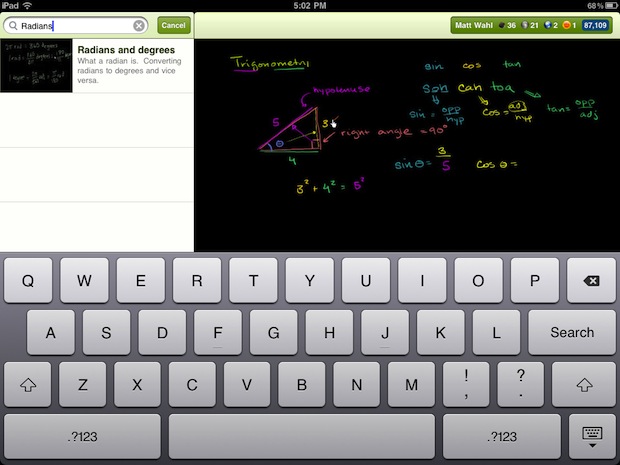
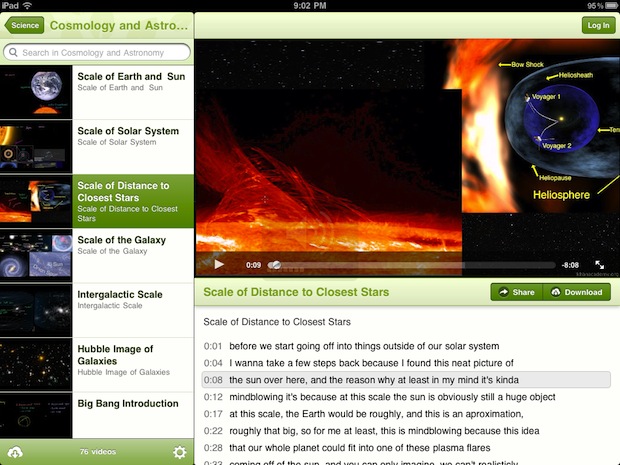
Khan Academy the website that makes free online learning videos has released a new app for the iPad. The newly released app allows you all of the video content. The Khan Academy is a great online learning resource and it is great to see it coming to the iPad. Click here to download the free app from the App Store. Khan Academy is a great resource for people who want to learn about a variety of subject or review for school assessments. In addition it is a great resource to compliment class notes. The video's include closed captions.

Scanner Pro Review


Scanner Pro is an app for the iPhone, iPad and iPod Touch. It works best with the iPhone because it has a higher quality camera. Scanner Pro allows you to take a picture of a multi-page document and then convert the images into a PDF file. Images can be taken with the camera or imported from the camera roll. When using the camera to capture an image there is an option to have the picture taken when the camera is perfectly still for better image quality.

Scanner Pro allows you to take pictures of multiple pages before saving them to a PDF which speeds up the process of scanning multiple pages. Once you have taken the pictures of the document you can change the contrast and brightness. Scanner Pro can automatically detect the edges of a document but it does do not do as good of a job at detecting edges as other scanner apps such as TurboScan and JotNot.

The app struggles even more if the document is on a light background. The inability of Scanner Pro to consistently detect the edges is a major downside. If Scanner Pro does not recognize the edges of the document automatically you can adjust the edges manually but this takes time and slows down the process considerably. Once you adjust the edges Scanner Pro has great features to manage and share your document. You can send documents by email, iDisk, WebDAV services, Evernote, Google Docs and Dropbox. The app allows you to share you documents over Wi-Fi as well. Another cool feature allows you to password protect the entire app or individual documents. Scanner Pro costs $6.99 in the App Store.


Scanner Pro is a well done app but the problems detecting edges really slows things down. Because of this one problem I would recommend JotNot or TurboScan instead. If Readdle, the maker of the app, fixes the edge detection problem it would be a different story.

Click read more below to view screen shots of Scanner Pro in action.