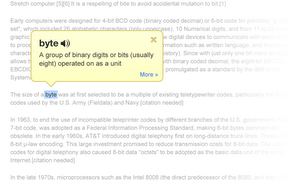
Making text accessible for students with "Print Disabilities" has become one of the cornerstones of the work that I do day in and day out. By being able to provide students with accessible text, they can know with confidence that they will be able to keep up with the work load in their respective classes. Utilizing services like Bookshare has really made a significant difference in the lives of students that I have worked with, but it is still incredible when I realize just how many parents, students and educators are unaware of the service. As I continue to go out into the educational community and share this information one of the things I have learned in my years in the field of assistive technology is that: the technology has to be dead simple to use and access. If there are any kinks in the process there is a real likelihood that the technology just will not be utilized. In this respect with the release of the Bookshare Web Reader, Bookshare has taken the necessary step to make the process of accessing and reading books a simpler process for both students and teachers. Now students can log into Bookshare with their Individual account credentials-open the Google Chrome Browser and simply install the Bookshare Web Reader Extension and have immediate access to their books complete with text to speech support. Students will no longer have to download a separate application to access their books and by using the Google Chrome browser they can access their books on any computer through the browser.


I had a chance to try the Bookshare Web Reader, just today, and I am very pleased with how it worked. The installation of the Chrome extension was simple to do and by simply logging into a Demo Individual account, I could click on the
Read Now link which automatically opened the Bookshare Web Reader. Bookshare Web Reader, has an easy to use tool bar at the top of the Browser which lets you navigate the book and start and stop the
Text to Speech engine. By clicking on the
Gear icon- it will pop up a dialog box that will allow you to change some of the reading and visual settings. Students can change the look and feel of the book and can determine just how fast they would like the text to be read. Working with the Bookshare Web Reader, I did not see a way to change the speech engine and I am guessing that the Bookshare Web Reader, uses a text to speech engine that is installed with the Web Reader Extension. If I had to make a recommendation, I would like to see a range of speech engines that students can select from in future releases of this product. Overall, Bookshare Web Reader makes accessing Bookshare books easy and straight forward and eliminates the need to have a full blown reading application installed on the computer. As we remove more and more friction from the reading experience, more students will find it second nature to utilize their Bookshare accounts with the Bookshare Web Reader to access their books- and in the end, that is what's really important.


 I had a chance to try the Bookshare Web Reader, just today, and I am very pleased with how it worked. The installation of the Chrome extension was simple to do and by simply logging into a Demo Individual account, I could click on the Read Now link which automatically opened the Bookshare Web Reader. Bookshare Web Reader, has an easy to use tool bar at the top of the Browser which lets you navigate the book and start and stop the Text to Speech engine. By clicking on the Gear icon- it will pop up a dialog box that will allow you to change some of the reading and visual settings. Students can change the look and feel of the book and can determine just how fast they would like the text to be read. Working with the Bookshare Web Reader, I did not see a way to change the speech engine and I am guessing that the Bookshare Web Reader, uses a text to speech engine that is installed with the Web Reader Extension. If I had to make a recommendation, I would like to see a range of speech engines that students can select from in future releases of this product. Overall, Bookshare Web Reader makes accessing Bookshare books easy and straight forward and eliminates the need to have a full blown reading application installed on the computer. As we remove more and more friction from the reading experience, more students will find it second nature to utilize their Bookshare accounts with the Bookshare Web Reader to access their books- and in the end, that is what's really important.