Showing posts with label quick. Show all posts

ChromeVis: Free Tool for Chrome Users With Low Vision
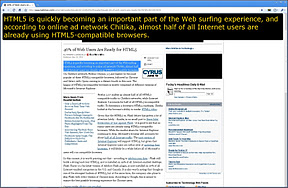

ChromeVis is a simple Chrome extension for users with low vision. ChromeVis is simple to use and has many customization options. To use ChromeVis highlight the text you want magnified and then click on the ChromeVis icon in the top right of your Chrome window. To customize the appearance of ChromeVis right click on its icon and select options. To download ChromeVis for free click here.

Add Quick Text-to-Speech Button to Microsoft Word


Microsoft Word has a hidden text-to-speech button built in. To access add the text-to-speech button to the quick access tool bar click on the down arrow in the top left corner of the screen. Next click on more commands and then click on all commands from the drop down menu. Finally click on speak from the list and then press add. To use the text-to-speech feature select the text you wish to have read and click on the text-to-speech button you just added to the top left corner of the screen. The text will be read allowed instantly. Click the button again to stop the text-to-speech. Watch the video above to learn more. Click read more below for step by step instructions.


iOS 5 Tips: Use Assistive Touch to Replace a Broken Home Button, Lock Button or Volume Button


Assistive Touch is a new feature in iOS 5 that allows people with physical disabilities to better use their iOS device. To learn more about AssistiveTouch click here. To enable Assistive Touch go to Settings>General> Accessibility>Assistive Touch and then turn on Assistive Touch. A small round white button will then appear on your screen. When you touch the white button a list of commands will appear including a software home button, lock button and volume up and down button. You can now use these software buttons to replace your broken home button or any other broken buttons. You can drag the white button to different places on the screen for your convenience. Watch the video below to learn more.


How to Use Parental Controls


The Internet is an interesting place were you can read, watch or listen to almost anything. The Internet can also be a big distraction.When writing a paper or reading a book surfing the Internet can be a distraction. Learn how to make your computer distraction free for your self or your children by using parental controls. With parental controls you can set restrictions for the internet, games, what times you can use the computer and much more. Parental controls are built into most operating systems and are easy to use. Click  the read more button bellow to find out if your operation system has parental controls and how to use them.

Windows

Mac

iOS

Using Image Selector in Kurzweil 3000


Kurzweil 3000 is a software application that can interpret scanned documents and read them back to you. Scanners are not perfect and sometimes a scan comes out poorly, luckily, Kurzweil 3000 has tools to improve your scans. One of the best tools to improve your scan is image selector. With image selector you can delete a part of your document that came out poorly. For example, if scanned document has a black mark down the side you can use image selector to delete the blemish. To activate image selector go to the edit menu and then click on image selector. Next you will have to click draw a box around the blemish you wish to remove. Then under the scan menu go to image fill and then select white. Now your black mark is removed from the page.

There is another useful way to you image selector. If you are using the fill in the blacks feature and it mistakenly finds to many blanks. Now your document has text boxes all over. To delete all of the unwanted text boxes use image selector. With image selector draw a box around all the unwanted text boxes then go to tools then notes and then delete this process will delete all text boxes in the selected area.

Ginger Corrects Spelling and Grammar Mistakes


Ginger is an automatic spelling and grammar tool that corrects mistakes at the touch of a button. Ginger also has other features that Microsoft Word spell check does not. People who have dyslexia, are learning English or need documents with correct spelling and grammar can benefit from Ginger. Ginger corrects mistakes that spell check does not such as homophones. Ginger also makes context based corrections. For example if you write "Their is a big house" Ginger would corrected the sentence to "there is a big house." When editing a document press F2 to get corrections from Ginger. Ginger includes a text-to-speech option that speaks the input and output text aloud. The text-to-speech function can also read documents, web page and emails aloud. For users that wish to improve their grammar and spelling, Ginger offers informative lessons and quizzes. In order to use all of the features of Ginger you must have an Internet connection. The cost rages from $4.90 a month to $89 for a one time payment depending on the features you want. The premium version cost $89 and comes with text-to-speech, lessons to learn from your mistakes and spelling and grammar check. For $29 you get contextual grammar and spelling check. For a monthly payment of $4.90 you also get contextual grammar and spelling check. Ginger is only available for PCs. To test out Ginger type a sentence into the graphic above and press "Ginger It." Visit gingersoftware.com for more information.