Voice Dream Reader App For iOS


Voice Dream Reader is a text-to-speech app for people with reading disabilities or people who just prefer to listen to text. The app costs $4.99 in the App Store. Click here to download the app. Voice Dream Reader can extract text from ePub, PDF, Word, Pages, Keynote and web pages and then read them aloud using text-to-speech with synchronized highlighting. Watch the above video to learn more. Voice Dream Reader comes pre-loaded with the Heather voice, but additional voices can be purchased for $0.99. One downside is that all text formatting and all images are extracted and not visible.

While reading a document you can change the speech rate, text size and background color. While reading a document it is easy to skip around in the text and look up words. The app cannot read the definitions so you will need to turn on VoiceOver. It is unfortunate that the app does not read the definition because some people may not be familiar with VoiceOver. Voice Dream Reader can be synced with a number of cloud services including Dropbox to get documents into the app.
In all Voice Dream Reader is a solid app. For some, the built in Speak Selection feature may be good enough. With iOS 6 coming in the fall, Speak Selection will have syncronized highlighting which will make some features of Voice Dream Reader obsolete. If you want the ability to create playlists or read with multiple voices this app is for you.
Click read more below to view screenshots of Voice Dream Reader in action.


Apple Releases OS X Mountain Lion With New Accessibility Features


Apple's Mac operating system has been updated. The new update is called OS X Mountain Lion. The new operating system includes over 200 new features including a number of accessibility enhancements. One feature called Dictation allow users to speak their text input instead of typing. Mountain Lion also includes better syncing with iOS devices. OS X Mountain Lion also includes enhancements to VoiceOver. To view a detailed list of all new accessibility in Mountain Lion click here. Apple's website says the following about about OS X accessibility,

"Every Mac comes standard with a wide range of assistive technologies that help people with disabilities enjoy the power and simplicity of the Mac. We call this Universal Access, and it includes many features you won’t find in other operating systems at any price. In OS X, they’re built right in."
To view a detailed list of OS X accessibility features click here. OS X Mountain Lion is available for download from the Mac App Store for $19.99. Click here to download Mountain Lion. Click read more below to view images of Mountain Lion.


Apple profit jumps to $8.8 bn, but below forecasts

Switch to HTML mode and paste the e


Apple profit jumps to $8.8 bn, but below forecasts (via AFP)

Apple on Tuesday reported a rise in its quarterly profit to $8.8 billion on hot iPad sales but the results came up short of lofty Wall Street expectations, prompting its shares to dive. The profit in the fiscal quarter to June was up 20.5 percent from a year earlier and amounted to $9.32 dollars a…


mbed code over this text

First ASL Narrated iBook Hits The iPad


A new iBook called Pointy Three includes built in American Sign Language (ASL) video narrations. Click here to download the iBook. Pointy Three costs $4.99 but you can download a sample for free. It is the first iBook to include ASL video narrations. An iPad is required to read the ebook. These video narrations are great for people learning ASL or parents of deaf children. Hopefully, the selection of ebooks with ASL narration will increase.

Watch the above video to learn more. Click read more below to view screenshots of Pointy Three.


Learning Ally Audio App Now Free


Learning Ally, the audio book service for people with disabilities, has reduced the cost of their iOS app to free. The app previously cost $19.99. In order to use the app you must be a Learning Ally member. Click here to download the app which is compatible with both the iPad and iPhone. The app is the easiest way to listen to Learning Ally books on your iOS device. Now that the app is free it is a no brainer for members.

Unfortunately the app is still missing key features such as background audio play back, background downloads and the ability to browse the Learning Ally catalog directly from your iOS device. When listening to an audio book you cannot follow along with an ebook because the audio book will automatically pause. Also in order to download an audio book you first must add the book to your bookshelf via a web browser. These short comings weaken the user experience, but it is still great to listen to Learning Ally books on your iOS device.  Hopefully in time the app will be updated with these and other features. To learn more about Learning Ally click here. Click read more below to view screen shots of Learning Ally Audio in action.
iPhone Screenshot 1

iPhone Screenshot 2

iPhone Screenshot 3

iPhone Screenshot 4

iPhone Screenshot 5

LabQuest 2 from Vernier- Connected Science System

It has been a couple of years since I last reviewed the Labquest from Vernier, so when I was able to get my hands on the LabQuest 2, I was really excited to find out about all the new enhancements in this new handheld connected science system. The LabQuest 2 is about the size of large cell phone with a high contrast screen that is powered by a high capacity rechargeable Lithium battery. The Labquest 2 has a great design and feels very solid in your hands as you use the device. The high resolution touch screen is great for viewing when you are using it outside in the field. Vernier did not skimp on the processing power in this device and you will find it very responsive when you are collecting or analyzing data on the device. The LabQuest 2 supports all of the Vernier sensors making it easy for schools who have invested in their devices and probes. The LabQuest 2 now includes both WiFi and Bluetooth which opens up all kinds of possibilities which I will discuss later in the post. Additionally, the LabQuest 2 has built-in accelerometers as well as GPS which can be utilized with other sensors for recording such data. I should mention that the LabQuest 2 is compatible with both Mac and Windows computers.


LabQuest 2 Screenshot
But no matter how good the hardware is-how does the LabQuest 2 hold up when in use? This is where this device really shines! Teachers will find that the LabQuest 2 is a dream to use-just plug in the sensor which will be automatically detected by the LabQuest 2 and press the Collect button to get started. Instantly students will be able to see their data being displayed on the screen. Once the data is collected students can spend their time using the analytic tools built in or transfer the data to a computer. Teachers can also have students email the data, graph, or screenshot directly from the LabQuest 2, that was captured, which makes it easy to include in a lab report. The LabQuest 2 supports analysis with linear and curve fits and allows students to record their notes on the device, with the on-screen keyboard. Teachers will enjoy the fact- knowing that the LabQuest 2 comes with over 100 experiments that are pre-loaded on the device which students can access. If teachers would like to customize the labs, Vernier has a handy Lab Creator Tool that is available to teachers that allows you to tweak the lab to your liking. 


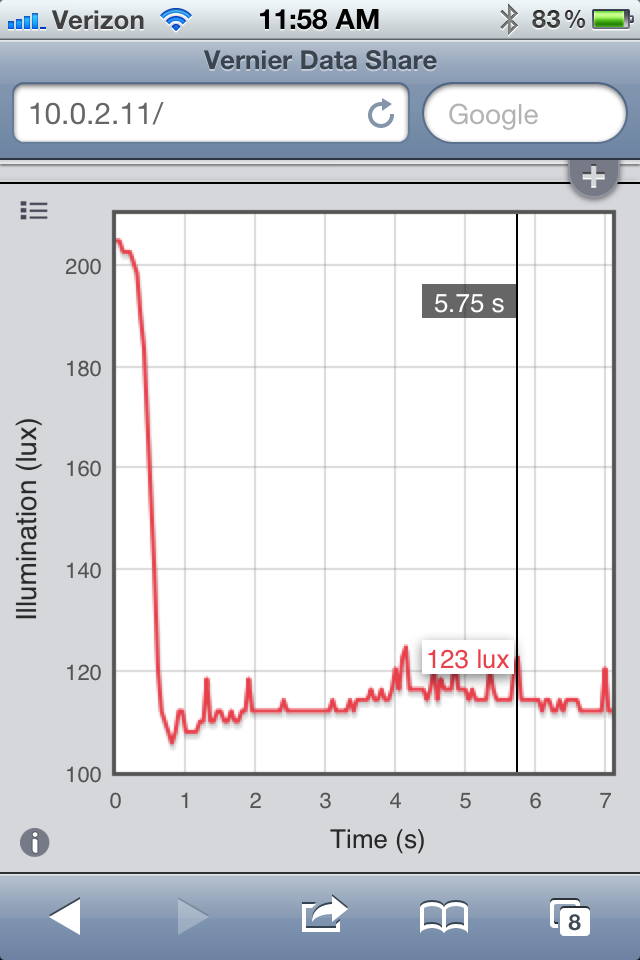
Vernier Data Share on iPhone 4S
In this age of bring your own device (BYOD) Vernier has taken this model to heart and created the "connected science system," allowing anyone with a browser to view and interact with the collected data. This enables students with iPhones, Android Phones, iPod Touches, and iPads, to launch their browser and view the data live as it is being collected. All the students need to to do is go to their Settings and make sure that their device and the LabQuest 2 is on the same wireless network. Now simply launch the browser and enter in the IP address or name of Network and voila you are ready to view the data being collected in real time. I have tested various browsers, using my iPhone, iPad, and Kindle Fire with the LabQuest 2 and in each case the data was instantaneously available for me to preview in real time. For a richer set of tools, teachers can purchase the Graphical Analysis for iPad app from the App Store.

With the LabQuest 2, Vernier has transformed the way teachers need to think about teaching science in the classroom and provided them with an easy and powerful solution for capturing data in real time. Utilizing their "connected science system" with the LabQuest 2 it is now possible to extend their set of tools to students, so that they can collaborate in real time-by simply launching a browser. For teachers that want to create more interactive science lessons and give students the opportunity to collect data the LabQuest 2 is certainly an outstanding tool you should include in your classroom. Giving students the opportunity to both visualize and analyze data is at the heart of science and what better way to make it hands-on than with the LabQuest 2. For ore information about the LabQuest 2 you can click here.

If you are considering using the LabQuest 2 in your classroom Vernier will be offering free 4 hour workshop sessions in the Fall. For more information about the workshops click here.

Easi-Speak USB Microphone

Finding ways to engage students in the classroom with easy to use tools is always a challenge for teachers. But when you do find and easy to use tool that works well-its time to share. I recently had the opportunity to review the Easi-Speak digital microphone form Learning Resources and it name says it all. The Easi-Speak USB microphone has a built-in rechargeable battery that can last up to 4 hours on a charge, giving you and your students plenty of time to record. The Easi-Speak USB microphone can be charged via the USB port on your computer and there is no need to ever have to change or discard batteries. 


The Easi-Speak USB microphone is simple to use and is ideal for students in the kindergarten all the way up through the grades. Students can start recording by clicking the Red button on the microphone and when they are done they can simply press the Red button again to end the recording session. I had my graduate students use the Easi-Speak USB microphone and they were really excited and impressed with the quality of the audio recordings. Many of my students were looking forward to purchasing an Easi-Speak USB microphone to use in their classrooms for reading fluency, story telling, and for podcasting. The Easi-Speak USB microphone can save the audio files in the MP3 or WAV format making it easy to utilize with other computer applications. In fact when you plug in the Easi-Speak USB microphone into a USB port it mounts as a flash drive where you can find all of your recordings. The Easi-Speak USB microphone ships with a copy of Audacity giving you the ability to edit the sound files. With the Easi-Speak USB microphone, simple controls and quality recordings, this is one tool most teachers will definitely want to have in the classroom.


Here is short video about Easi-Speak USB microphone.


To be in the running for a free Easi-Speak USB microphone click here and share how you would use this tool in the classroom.

Screencast: Creating a Matching Activity in Clicker 6

In my previous post I spoke about just how easy it was to create a Matching Activity in Clicker 6 with it new Wizards and thought that I would show you how quickly this could be accomplished. Likewise, my other reason for creating the screencast was to work with the latest version of Camtasia Studio 8 which was recently released. If you are doing screencasting of any sort, then you will want to take a look at the latest release of Camtasia Studio 8. I was able to create this polished screencast with Camtasia Studio in minutes and share it with you using their on line storage component called, Screencast.com. In the age of the "flipped classroom," Camtasia Studio 8 is an essential tool and one that will make your videos shine. Please look for a more in depth review of Camtasia Studio 8 in the coming weeks.


Eyes Free Typing With Fleksy For iPhone


Fleksy is an app for the iPhone and iPod Touch that allows visually impaired users to type without needing to see the keyboard perfectly. Users press on the screen approximately where they think the correct letter is located on the keyboard. Fleksy is designed only for people with visual impairments. To use the typing feature in the app VoiceOver must be off, and then when you want to share the text you have typed you must turn VoiceOver back on by tripple-clicking the home button.

As the above video shows the taps on the keyboard can be fairly far from the correct letter without effecting the accuracy. If there are multiple possible words based on your taps. Fleksy will allow you to choose other likely words by flicking up and down on the screen.

After each word you must flick right to tell Fleksy that you are done typing that word. After each word, Fleksy will speak the word aloud using text-to-speech. To add punctuation you can flick to the right twice and the select the correct punctuation. If you have to enter a name, you can hold down on the keyboard and the letters will be spoken as your finger touches them, then you can release your finger to type the letter. To enter numbers and symbols rotate two fingers to switch between text, numbers and symbols. When you have typed your text, tripple-click the home button to turn on VoiceOver. Turning on VoiceOver automatically brings up the sharing menu which gives you the option to copy, email, text and tweet your text. Fleksy does not replace the standard iOS keyboard. I tested the app by closing my eyes while typing and found that the type was accurate and surprisingly fast. Fleksy claims that users can type up to 25 words per minute with practice. Fleksy is definately faster than typing with VoiceOver and the standard keyboard for visually impaired users. 


Fleksy sells for $14.99 on the App Store. Click here to download the app. Click read more below to view another video about Fleksy and to view screenshots.