Amazon, Sony, and Kobo Don't Want to Make Their E-Readers Accessible
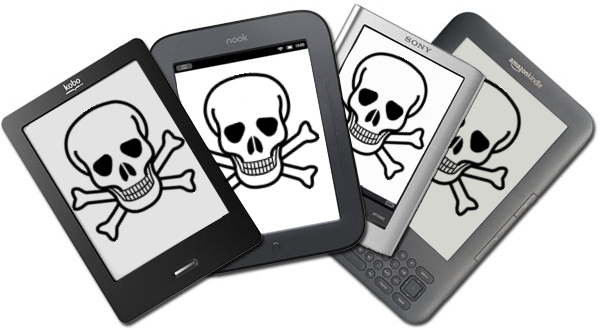
Some of the top names in the e-reader market are asking the Federal Communications Commission (FCC) to waive the accessibility requirements for their devices. Amazon, Sony, and Kobo have all petitioned the FCC to waive the accessibility requirement for their e-readers. They do not want to have to make their devices "accessible to and usable by individuals with disabilities."

The FCC requires advanced communication services (ACS) to be accessible to people with disabilities. The e-reader companies are arguing that their devices do not fall under the ACS classification because they are dedicated to e-book reading. The three companies also claim that adding accessibility features would decrease battery life, increase cost and increase bulk. They claim in the FCC document,
"Rendering ACS accessible on e-readers would require fundamentally altering the devices and it may not be possible to meet that requirement and maintain e-readers as inexpensive mobile reading devices, and yet the necessary changes, if they were made, would not yield a meaningful benefit to individuals with disabilities. It’s not merely cost but the very nature of a specialized e-reader device that is at issue."
Disabilities rights advocates content that because e-readers are not only being used for leisure, but also education the devices should be required to be accessible. Furthermore, Amazon has over a 100 million Kindle-exclusive titles according to the Wall Street Journal. If Kindles are not usable by the blind and people with other disabilities such as dyslexia they are shut out from this content.

It is questionable if adding accessibility features will really slow down and bulk up e-readers as the companies claim. A more realistic possibility is that the companies see adding accessibility features as an unwanted cost and challenge. Instead of requesting waivers from the government these e-reader companies should focus on making devices that are usable to the masses. Adding accessibility feature to devices is important and benefits the consumer as well as the company. With accessibility features e-readers can be purchased in public school, there are more potential customers, and the public will view the company in a better light.

The FCC is requesting the public's input in this matter through Tuesday, September 3. People interested in making a comment can do so by clicking here. The full petition can be read here.

Update: Amazon's newest Kindle Fire HD and Kindle Fire HDX include new accessibility features. Click here to learn more about the new accessibility features.

Sprint Introduces Mobile Captioning App for Hearing Impaired


Wireless service provider Sprint has released a new iOS app that captions conversations in real time. The app uses computerized speech recognition service to caption the caller on the other end. The user can hear the other caller if they are able to and use the captions if they are unable to hear the person on the other end of the line. Then they can respond by voice. It is unclear how accurate the automated captioning will be with people with heavy accents or in loud environments. Sprint says the following about the app:
"Wireless CapTel(R) by Sprint(R) is a free app available for individuals with hearing loss and understandable speech to place calls CapTel services on iOS. Using state of the art voice recognition technology, CapTel delivers captions of everything your caller says, while you listen (with your residual hearing) and speak directly to your caller."
The Wireless CapTel service is free for Sprint users with the Everything Data Plan. In addition to the iPhone Wireless CapTel is compatible with select Android smartphones from Sprint. To uses the service Sprint customers must download the app on the App Store. Click here to learn more about Wireless CapTel from Sprint.

Reveiw: Celluon Epic Laser Keyboard


The Celluon Epic is a Bluetooth laser keyboard. The compact device projects a QWERTY keyboard onto most flat surfaces. (Glass tabletops being the exception) You can connect the Epic to vertically any device that supports Bluetooth keyboards including devices running iOS, Android, Windows Phone, and Blackberry 10. On the back of the device there is a charging port and pairing button. Once you have the Epic paired with your device it acts the same as any other keyboard.

For any keyboard the most important consideration is the typing experience that it provides. The virtual keyboard brightness is adjustable and is easy to see in most lighting conditions. Unfortunately the brightness does not automatically adjust based on ambient light. With each keystroke a beeping sound is played which can be turned down. The typing experience on the Epic is mediocre at best. Inadvertently activating the wrong key can make typing frustrating and tiring. Even if you are a touch typist you'll still need to look down on the laser keyboard as you type. The Epic is definitely not for the blind or visually impaired.

Compared to a conventional keyboard the Epic doesn't hold its own, but if you look as the Epic as a supplement to your on screen keyboard the Epic looks more promising. If you have trouble typing on your smartphone or tablet the compact Epic may be perfect for you. You can easily bring the Epic along in your pocket and then use it when you need to type a longer email or text.

The Epic is available directly from Celluon for $169.99 and through Amazon for a special price of $149.99. Click read more to view more photos of the Celluon Epic.


Kicking the Tires on the Microsoft Surface RT

ISTE 2013 is long gone and is now just a fleeting memory- but wow was it fun! The ISTE conferences by and large remains one of my most favorite conferences to attend. This year was a lot of fun as I had a chance to meet educators from around the globe who see the potential for creating environments in the classroom and beyond that engage and enlighten students. No doubt we are moving into a post PC world which was evidenced by the sheer number of companies showing off their tablet solutions for the classroom. One of the companies which certainly made a big Public Relations splash this year was Microsoft. As part of Windows in the Classroom Surface Experience Project, Microsoft gave away 10,000 Windows Surface RT's to educators who attended the ISTE conference. It was quite interesting to see educators at the conference carrying their iPad in one hand and their new Surface RT in their left . I even spotted a group of teachers in the hotel one night sitting around the table figuring out how to get started with the Surface RT and Windows 8.  I will disclose that I was fortunate enough to meet with Cameron Evans, National Technology Officer and Chief Technology Officer of Microsoft Education, Cameron Evans, who is responsible for shaping and executing Microsoft Corp.’s technology and policy strategy in U.S. Education. Attending the ISTE Conference as Media, I had a great conversation with Cameron and he shared with me Microsoft's dedication and commitment to the education marketplace, understanding that his company had to become more focused and amplify the message as to the range of products and services that educators could rely on from Microsoft to achieve their goals in the classroom. At the end of our meeting Cameron was gracious enough to give me a Surface RT to take home and use. 

For those of you who know me-you know that I was an early adopter of the  iPad since it was released and own an iPad 1, iPad 2 and an iPad Mini. The iPad revolutionized how we work and  it has been a real boon for the work I do in the field of assistive technology. With that having said, I wanted to be open minded to the Surface RT and give it a test drive to see how it would perform. Overall, I have been pleasantly surprised and am really enjoying using the Surface RT around my home and when I travel. The Surface RT is very well constructed and made of a type of magnesium alloy that gives it a great look and feel. The Touch Cover is an innovative and functional cover/keyboard all rolled into one. At first glance you are not too sure you will be able to use the Touch Cover effectively but with a little practice you will find that it works quite well. The kickstand which is part of the Surface RT always is there when you are ready to read or type and having a full USB port makes it handy for the times when you want to transfer a file to your Surface RT from a thumbdrive. While I am familiar with Windows 7, Windows 8 is a whole new operating system that took me a little bit of time to figure out (well about 10 minutes give or take a few :-)). Its use of colorful tiles for apps and live feeds is innovative and very inviting.Using the familiar swiping action lets you navigate through the screens as you would expect and customizing the tiles is as easy a dragging them to the desired location. It did take a little getting used to the idea of the Charms on the

right hand side of the screen but I have found it a welcome addition to Windows 8 to help me navigate through the Surface RT. While many have lamented about the look at feel of Windows 8 (Metro style) I found it to be attractive and enjoy, having real time feeds appear in the tiles from my various social networks which are linked to my Windows 8 account. Having access to the touch enhanced versions of Microsoft Office Microsoft Word, Excel, PowerPoint, and OneNote is another helpful perk especially when I am concerned about not losing the formatting going between different systems. I have found that the Surface RT has wonderful battery life and connecting it to various WiFi networks was fast and fluid. Bering able to switch from one app to another by swiping is a great short cut and one that I use often. While Apple has decried the use of Flash on their iPad, having access to Flash on the Surface RT has been great especially the way it is integrated into Internet Explorer. If I had any gripes I would like the Surface RT to have a faster processor so that screens are rendered faster. There are times when you wait for the information to show up on the screen.

One of the areas which needs to be addressed is that there are far fewer apps for educators that are available for the Surface RT in the Microsoft Store. One of the short comings of the Surface RT is that since it sports an ARM processor it is not possible to install legacy Windows 7 or 8 applications that you might want to. Therefore the only applications that you can install are those that have been written specifically for the Surface RT. While most of the major apps that you would expect to find are currently there, (ie. Kindle, Amazon, Netflix, Evernote etc.) there are still too few apps for the classroom especially in the area of assistive technology. Yes, Microsoft did embed a lot of accessibility features into Windows 8 (Text to Speech, Narrator, Zoom, and Speech Recognition)  there needs to be more work done to persuade developers to provide educators with a range of apps so that we can use on the Surface RT with students with special needs. 


As much as Microsoft has taken a hit in the press with regards to writing off $900 million dollars due to poor sales of the Surface RT- it was necessary for Microsoft to show the industry that it could design and develop top of the line hardware so that they can control its destiny in a post PC world. The Surface RT is an interesting tablet with a lot of functionality but one which was not really well defined or understood from the outset. This in my opinion cost Microsoft ground in its race to achieve market share in the tablet space. Now that Microsoft has lowered the price of the Surface RT to $349 dollars it has an opportunity to refocus its marketing and communicate to educators and consumers the value proposition of owning a Surface RT, compared to the other tablets in the marketplace. While this may be a formidable task- one gets the real sense that Microsoft is in this for the long haul and is just getting ready to rock and roll! 


Bookshare Reaches 200,000 Accessible Downloadable Titles

Recently Bookshare's downloadable library of accessible ebooks reached 200,000 titles. The 200,000 mark comes just months after the 11th anniversary of the service. Bookshare books contain digital text and can be read with text-to-speech and synchronized highlighting. Text-to-speech paired with synchronized highlighting can help dyslexics with comprehension. Members can also read books on a refreshable braille display. As a result of funding from the United States Department of Education Office of Special Education Programs (OSEP) Bookshare is able to provide its services free to qualified U.S. students. For information on membership click here. Members are provided with software to read Bookshare books on their Mac or PC but  Bookshare books can also be read on many other devices including iOS devices using the  Read2Go or Voice Dream Reader app. An Android app called Go Read is also available.

Belkin Sets the Stage!

As the iPad takes hold of the classroom, educators are looking for new ways to extend the functionality of the device and take advantage of it's powerful feature set. While many of us have utilized the camera on the
iPad for still photographs or for taking classroom videos- companies like Belkin want to extend the reach of these capabilities and help teachers get the most out of their iPad investment. With this in mind Belkin has just released the Belkin Tablet Stage which turns your iPad into a document camera and presentation system. Having had a chance to work with the Belkin Tablet Stage first hand, I am impressed with the quality and attention to detail of the design.

Putting together the Belkin Tablet Stage took about 10 minutes and was rather straight forward using the step by step directions in the booklet that accompanied the device. The Belkin Tablet Stage cradle can accompany a wide range of tablets, everything from the iPad 2, Samsung Galaxy, to the iPad Mini. The cradle can easily be pivoted from landscape to portrait mode making it easy to use when using apps or as a presentation tool. The Belkin Tablet Stage has an easy to use release button that allows you to easily and quickly remove your iPad or tablet from the stand. The Belkin Tablet Stage base is securely weighted to ensure that your tablet stage does not fall over. Teacher who prefer, can secure the Belkin Tablet Stage to the desk with screws, with the cut outs provided  in the base. Zooming in and out with the Belkin Tablet Stage is easily accomplished by pressing down on the latch on the post and moving the arm up or down.. The designers of the Belkin Tablet Stage took into account that teachers would be connecting their tablets via a cable and have provided a cabling management system that works well and keeps it out of the way when using the stand. As a nice touch, Belkin has also included a light that affixes to the post which can be turned on when you need to illuminate an object or page under the iPad. Teachers will really enjoy the freedom of this device when the iPad is paired up to an Apple TV which allows you to use Apple Airplay technology to wirelessly send the video and audio to the data projector.

While teachers can utilize any number of apps that takes advantage of the iPad camera, Belkin has also released a free app called the Belkin Stage app which compliments the stand. Stage is an easy to use app that can be utilized to mark up and annotate whatever is under the camera. Its innovative user interface pops out from the sides when you are using the various tools and then slides back to the sides so that it doesn't get in the way. While you have the traditional pen tools with various line widths and a laser pointer the really nice touch is being able to create label flags ahead of time that you can then pull out from the drawer to highlight important features of your pictures or objects that are under the camera. Once you have annotated the image you can capture the image and save it to your camera roll for later viewing. One of the unique features of the Stage is the ability to record a video complete with annotation and audio. This does require an in app purchase but is definitely worth the cost of $1.99 for the video and recording feature. Teachers that are moving to providing students with videos for a flipped classroom model will enjoy using the Stage app and the annotation feature for crafting their videos. The Stage app also allows you to use the app as you would a blackboard and you can even bring in pictures from your Camera Roll and annotate them as well. Here is a video demonstration of the Belkin Stage that I prepared utilizing the Belkin Tablet Stage.


All in all, there is a lot to like about the Belkin Tablet Stage and is it a great iPad accessory for the classroom that you will enjoy using. While working with the Belkin Tablet Stage, I did have a tendency to want the be able to swing the iPad around the post which is in a fixed position. In order to rotate the iPad from a portrait or landscape mode you need to rotate the frame which takes a little more time. I also wish as a presenter, that there was a lighter travel version of this Belkin Tablet Stage which would make it easier to transport from classroom to classroom. I also did note that when working in the Belkin Stage app that the Flags did not always rotate to the right orientation when going from Portrait to Landscape mode. Except for a couple of minor issues, the Belkin Tablet Stand and Stage app are a strong contender to move to the top of the class when it comes to iPad accessories for classroom use. If you are attending the ISTE 2013 Conference stop by the Belkin Booth #5247 so that you can see first hand what a great product they have designed.


Google's Advance Voice Search Comes to Chrome


Recently Google added advanced voice search to the Chrome browser. Google's advance voice search feature was previously only available for Android and iOS, but is now available on Mac and Windows. The feature is similar to Apple's Siri ,but works on your computer as well as mobile devices. To access the feature, navigate to Google using the Chrome browser and press the microphone icon to the right of the search bar. Then you can search by voice and Google will speak back select results. I have found the voice recognition to be very fast and accurate. One of the most notable features for struggling spellers is that you can ask how to spell a word and then Google will speak back the correct spelling. Google will also provide spoken responses for many other queries as well. Watch the above video to learn more.

ISTE 2013- What I Will Be Packing!

Well it is hard to believe that another year has come and gone and I will be off to ISTE 2103 Conference in San Antonio in a couple of days! It figures to be an exciting venue with over 18,000 educators attending. I am sensing a lot of energy this year which should make for a great show. I put this Haiku Deck together to give you a glimpse of what I will be packing. Enjoy-and stay tuned for some new product announcements on my blog!


www.haikudeck.com

iPad Workshop: Using the IPad for Students with Learning & Organization Disabilities

Join me for a full day workshop as we explore how the iPad can be used with students with learning and organization disabilities.

The multi-sensory design of the iPad has made a big impact in the field of education because it appeals to all learners. There are thousands of applications (apps) in the area of education, with many designed specifically for students with learning disabilities and organizational
difficulties. Come learn about the built-in IOS features that make the iPad an ideal device to support students with learning and organizational difficulties. Learn about some new workflows and how students can use the iPad to organize their school life. Come learn about apps that can be used as students move through the writing process, from brainstorming to publishing. During this session you will learn about mind mapping apps, word prediction, text to speech, speech recognition and other supports to assist students in the writing process. Similarly learn about some new and innovative apps for reading. Find out how you can use the iPad as an instructional tool to engage students in the learning process. Leave the workshop with new ways and strategies to use the iPad when you return to your classroom.

Bring your iPad so that we can do hands on activities with the various apps. Participants will be emailed the names of apps we will be working with prior to the workshop. This is a Bring Your Own Device Workshop- so please feel free to bring your iPad to the workshop- WiFi connectivity will be available in and air conditioned setting.

Seating is limited so register early!

Registration Fee: $99.99 & Includes 1 iPad Laminated Reference Guide
For more information email: brian@assistivetek.com or call 908-852-3460
School Purchase Orders are Accepted made payable to AssistiveTek, LLC, 174 Stephensburg Road, Port Murray, NJ 07865


To Register click on this link http://adobe.ly/11qndbs


Location of Workshop : Delaware Township School District -501 Rosemont-Ringoes Road
Sergeantsville, NJ 08557

Time: 8:30 am - 2:30 pm
Hope to see you there! Brian